1. Where Docker stores data
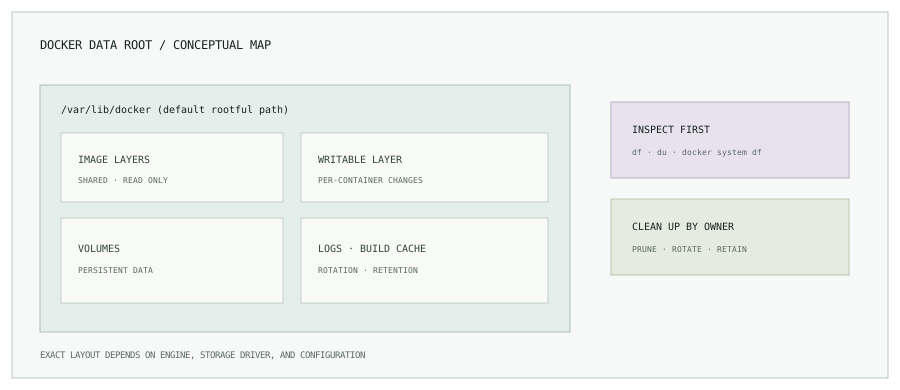
On a typical rootful Linux installation, Docker Engine stores images, container metadata, writable layers, volumes, and other data under /var/lib/docker. The configured data root can differ; check the daemon configuration before assuming the path. Rootless Docker uses a per-user data directory. Container logs may also be held under the Docker data root depending on the logging driver.
Overlay filesystems share read-only image layers between containers and add a writable layer per container. Writes made into that layer are ephemeral and can grow unexpectedly. Named volumes are intended for persistent container data; bind mounts point to a host path. BuildKit keeps build cache separately from running workloads, but it still consumes disk.
2. Find what is actually full
Start at the filesystem, then compare Docker’s own accounting. Avoid diagnosing from a single directory total because overlay layers and shared data can make filesystem size and Docker’s logical accounting differ.
df -h
docker system df
docker system df -v
docker ps -as
On Linux, this read-only directory check shows which top-level area is growing while staying on the same filesystem:
sudo du -xhd1 /var/lib/docker 2>/dev/null | sort -hUse the Docker data root configured on that host. Run inspection commands with the least privilege available; do not assume /var/lib/docker is the cause just because the root filesystem is full.
3. Images, containers, and volumes are different
| Object | What it stores | Cleanup consideration |
|---|---|---|
| Image layers | Read-only application and base image content, often shared. | Removing unused images may mean a later pull or build takes longer. |
| Container writable layer | Changes written by a container outside mounted paths. | Large temporary files or application data here disappear with the container. |
| Volume | Persistent data mounted into containers. | Can contain the only copy of application state. Verify owner and backup first. |
| Build cache | Intermediate layers and cache entries from image builds. | Prune by age or known policy; a clean cache increases future build time. |
| Container logs | Output collected by the configured logging driver. | Use rotation and retention. Avoid deleting active log files behind Docker. |
4. Common causes of disk exhaustion
- Old image versions accumulate because deployments pull a fresh tag without a retention policy.
- A process writes caches, uploads, or diagnostics into a container’s writable layer.
- Build agents retain Docker build cache indefinitely.
- A chatty service produces unbounded
json-filelogs. - Volumes outlive their workload and are no longer clearly owned.
- Container storage shares the root volume with the OS, leaving no recovery headroom.
5. Clean up safely
First identify owners, inspect candidates, and check backups. Docker cleanup commands remove unused resources, but “unused” is not the same as “unimportant.” Schedule cleanup for a maintenance window when workload impact is possible.
# Review reclaimable Docker storage
docker system df -v

# Remove images not referenced by any container
docker image prune -a

# Remove volumes not currently attached to a container
docker volume prune
docker image prune -a can make the next deployment or build pull images again. docker volume prune can permanently remove data from volumes that are currently unattached; inspect volume names, labels, and backups first. Never use a broad prune command as an incident reflex.
6. Prevent a repeat
Set an image retention policy in the registry and cleanup rules on disposable build agents. Send application logs to a managed logging backend and configure bounded local logging. For Docker’s json-file driver, a daemon configuration might include:
{
  "log-driver": "json-file",
  "log-opts": {
    "max-size": "10m",
    "max-file": "5"
  }
}
Daemon changes generally require recreating containers to apply the new logging configuration; restarting Docker can affect workloads. Validate the change and use a controlled rollout. Monitor free bytes and inodes, Docker usage, log growth, and time to exhaustion. Put Docker’s data root on a dedicated, monitored filesystem where appropriate.
7. A useful incident sequence
- Confirm which filesystem is full with
df -h. - Use Docker accounting and a bounded directory scan to locate the class of data.
- Identify the workload or owner and preserve any data needed for recovery.
- Remove only reviewed, unused artifacts or logs using their owning tool.
- Restore headroom, then add retention, rotation, and capacity alerts.
Next: manage the logs that never stop arriving.
Read Linux log management and retention, or browse all engineering notes.