1. Why reduce direct SSH access?
SSH is a useful protocol, but public or widely shared SSH entry points increase the number of credentials, keys, firewall rules, bastions, and audit paths an operations team must maintain. A compromised key or overbroad security group can create a high-impact access route.
Session Manager can remove the need for inbound port 22 on managed instances by creating sessions through the AWS Systems Manager service. This does not make access automatically safe: identity policies still determine who may start a session, and session logging, approval, endpoint reachability, and host permissions remain important.
2. Understand the SSM architecture
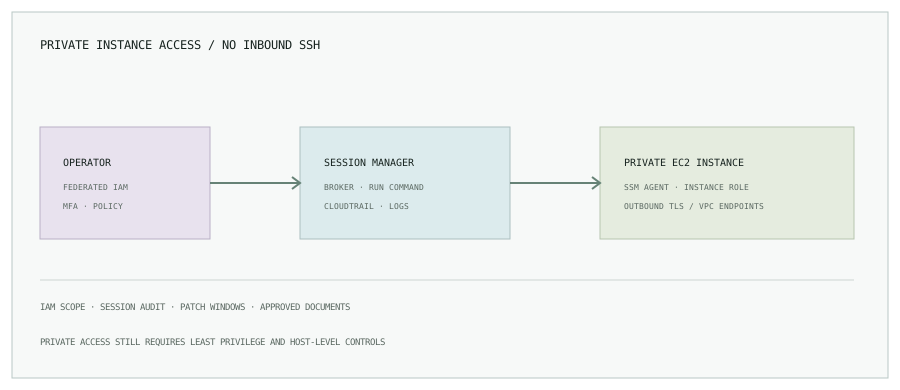
- Operator identity: an IAM user or role authenticates with short-lived credentials and receives narrowly scoped SSM permissions.
- Managed instance: SSM Agent runs with an instance profile that allows it to communicate with Systems Manager.
- Network path: the instance needs outbound access to relevant endpoints or properly configured VPC interface endpoints.
- Session channel: Session Manager brokers the connection; an inbound SSH rule is not required for this path.
- Audit and logging: CloudTrail records API activity; session data logging can be configured to CloudWatch Logs or S3 with appropriate controls.
3. Check setup prerequisites
- Confirm SSM Agent is installed, running, and supported on the operating system image.
- Attach an instance profile with the required Systems Manager permissions; AWS-managed
AmazonSSMManagedInstanceCoreis a common baseline, but evaluate its permissions against your policy. - Verify the instance appears as a managed node in the correct account and region.
- Provide outbound connectivity to Systems Manager endpoints, or configure the required VPC endpoints, DNS, and security groups for private networking.
- Grant operators only the specific session, instance, and document access they need.
- Configure session logging, retention, encryption, and access review before broad rollout.
Endpoint requirements can vary by region and agent version. Check the current AWS documentation and your network design rather than copying a fixed endpoint list into every VPC.
4. Start a Session Manager session
Install and configure the AWS CLI and Session Manager plugin, authenticate with your approved role, and confirm the account, region, and target before connecting.
aws sts get-caller-identity
aws ssm start-session \
  --target i-0123456789abcdef0 \
  --region us-east-1
Use a real instance ID from your account; the ID above is a placeholder. End the session when work is complete and retain the session record according to policy. For shell access, the operating-system identity and its permissions still matter.
5. Forward a local port without opening an inbound port
Session Manager supports port forwarding to a target host port. The following example forwards a local port to PostgreSQL on the managed instance. It does not configure database authentication; use the application’s normal credential management and limit who may establish the tunnel.
aws ssm start-session \
  --target i-0123456789abcdef0 \
  --document-name AWS-StartPortForwardingSession \
  --parameters '{"portNumber":["5432"],"localPortNumber":["15432"]}' \
  --region us-east-1
Then connect a local PostgreSQL client to 127.0.0.1:15432 while the session is active. Review whether your organization’s session logging configuration captures the contents of port-forwarded sessions; do not assume it does.
6. Use Run Command for bounded operations
Run Command executes an approved SSM document against selected managed nodes without opening an interactive shell. Prefer reviewed documents, narrowly scoped targets, change tickets where required, and output destinations with restricted access.
aws ssm send-command \
  --instance-ids i-0123456789abcdef0 \
  --document-name AWS-RunShellScript \
  --parameters 'commands=["df -h"]' \
  --comment "Authorized disk-capacity check" \
  --region us-east-1
This example runs one read-only inspection on one instance. For recurring fleet operations, use a reviewed custom document with input validation, clear output, an approval boundary, and a rollback plan for any changes.
7. Patch Manager and compliance
Patch Manager can help define patch baselines, maintenance windows, and compliance views for managed nodes. Start with a representative group, understand reboot behavior and application impact, and monitor patch execution results. Define exceptions and remediation owners rather than letting noncompliance alerts accumulate.
8. Production access checklist
- Remove unnecessary inbound SSH rules only after confirming break-glass and recovery requirements.
- Separate operator session permissions from instance agent permissions.
- Scope session access by account, region, instance tags, and approved documents where feasible.
- Use short-lived IAM credentials and MFA or federation controls required by policy.
- Enable CloudTrail and session data logging with encrypted, restricted destinations and retention.
- Alert on unusual session starts, broad Run Command targets, and changes to instance profiles.
- Periodically review who can start a session and what operating-system privileges they receive.
Illustrative use case: An operations team managing private EC2 application nodes can use Session Manager for routine diagnostics, Run Command for a reviewed fleet check, and Patch Manager for scheduled maintenance. The IAM and logging design remains specific to that environment.
Bring access and change into the same audit trail.
Continue with reviewable Terraform workflows, or browse all engineering notes.